
Skip to content
Connectica

Projects in Microsoft Teams and SharePoint

Name your project. TeamsFlow prepares its folders and access.

Every project gets a consistent Microsoft Teams folder structure based on your requirements. Access follows your company roles and groups, from Active Directory to Teams and SharePoint. TeamsFlow prepares a permission change plan and applies it after your approval.

Book a demo
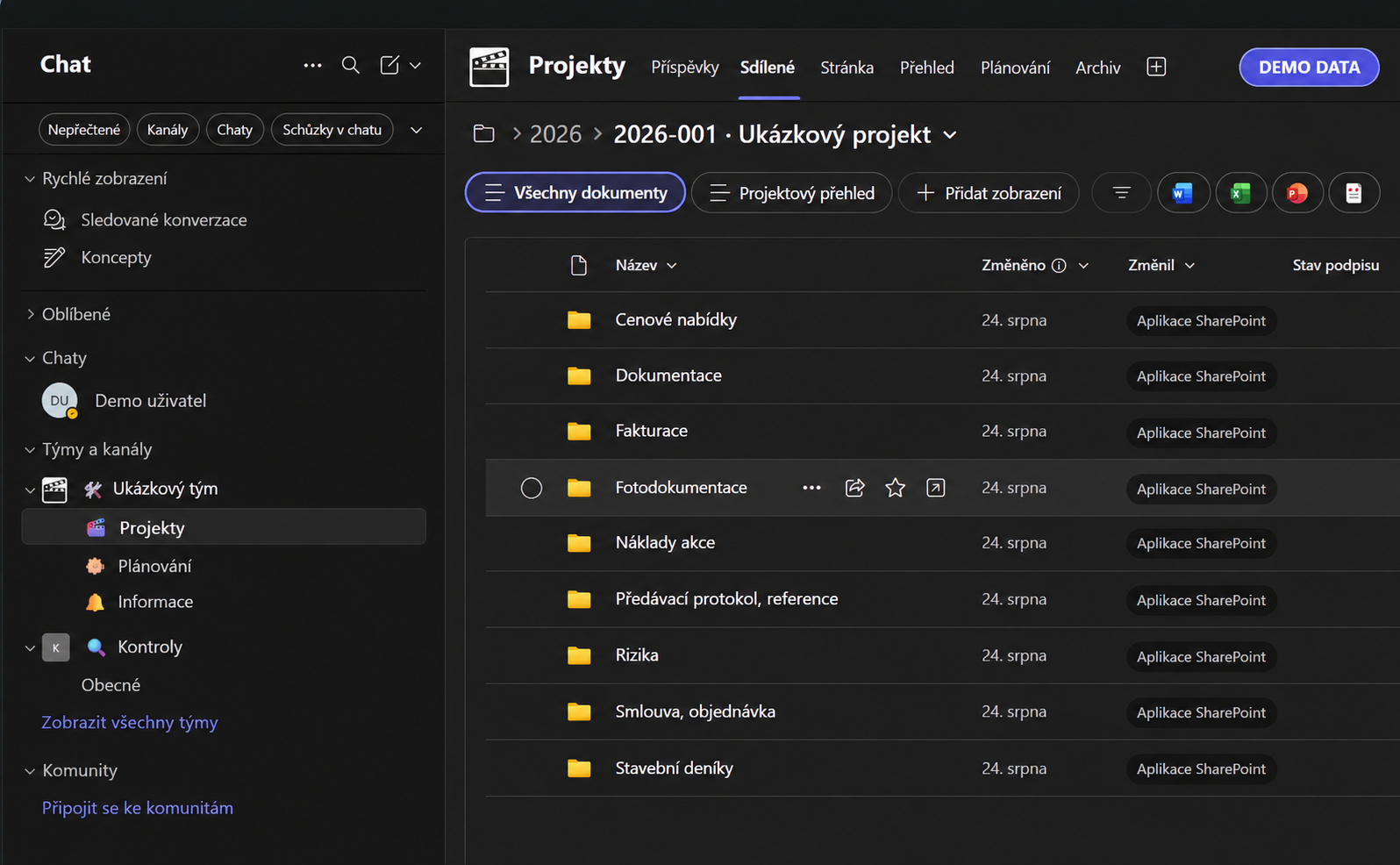
Example project structure in Microsoft Teams: documents, invoices, contracts and other standard folders. Identifiers replaced with demo data.
The result in Microsoft Teams. AI-edited illustration with fictional names; this is not the TeamsFlow web UI.

Everyday work

A place for documents, contracts and invoices

Projects often need the same folder structure, but different teams need access to different documents. We configure TeamsFlow around your company’s folders and roles. New projects follow those rules, while staff continue working with files in Teams and SharePoint.
Less manual setup

What the tool prepares for you

  • ✓A project in the right year with standard subfolders
  • ✓Access for management, administration, finance and project teams
  • ✓A preview of permission changes before approval
  • ✓A downloaded copy of the completed project and read-only archive access

TeamsFlow / How it helps

From company policies to Teams folders.

HOW IT WORKSTeamsFlow
INPUT

Template and roles

Folders and AD / Entra groups

PROCESSESTeamsFlowFolder creation · Plan and Apply
OUTPUT

Ready project

Consistent folders and access in Teams

WHAT YOUR TEAM GETSDocuments have a place and access follows team roles.
Review permission changes in a plan before approving their application. Archiving is available in the standalone tool.

TEAMSFlow IN ACTION

Projects and permissions in one place.

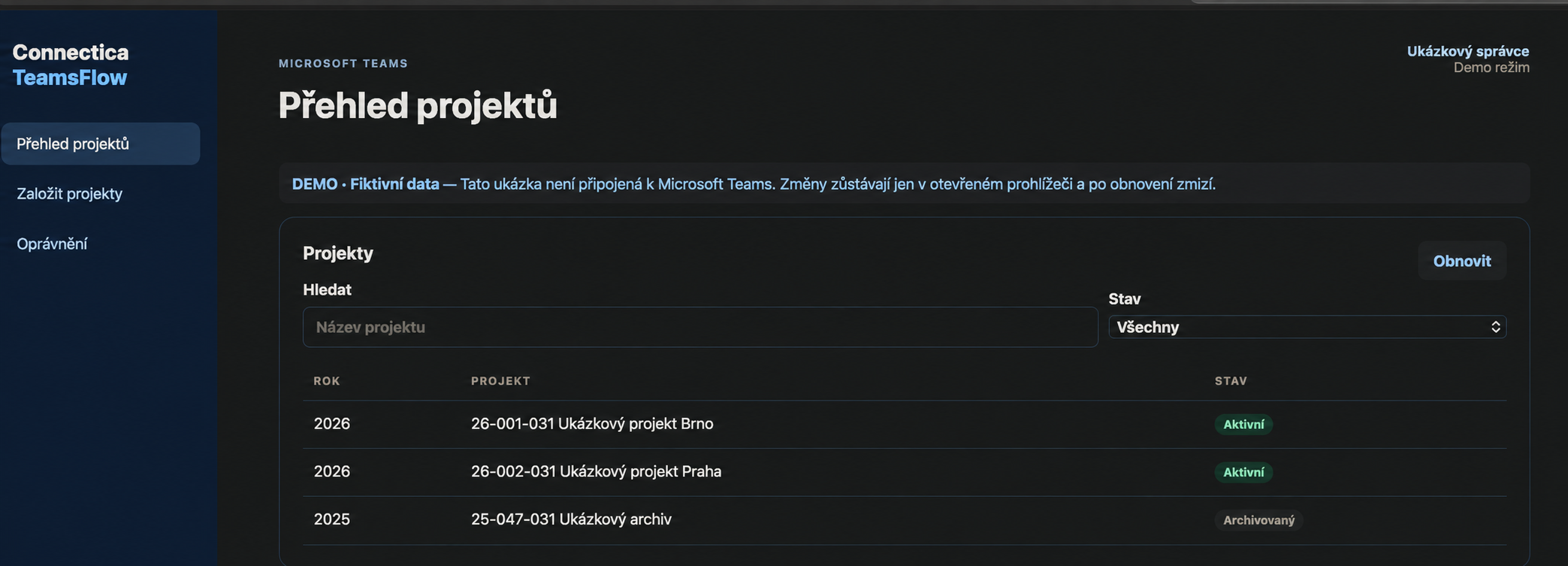
See your projects and their status at a glance. From here, create another project or review who can access its folders.

TeamsFlow demo interface showing three sample projects, name and status filters, and permission management navigation.
Demo mode with fictional projects. The screenshot was edited for public presentation and contains no customer data.
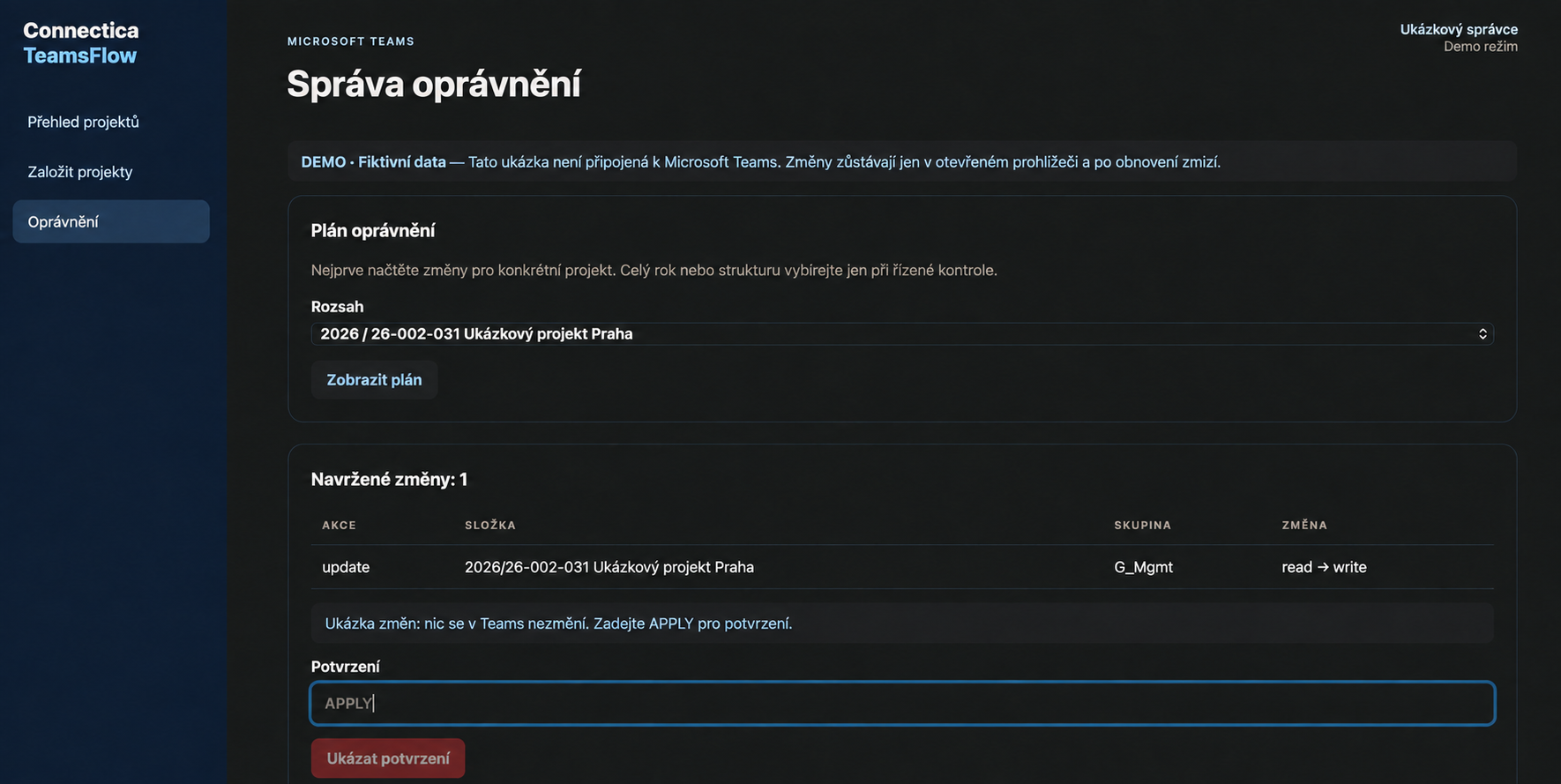
TeamsFlow permissions demo showing a planned folder access change from read to write and confirmation before applying it.
Review the change plan before confirming it. Demo with a fictional project; the screenshot was edited for public presentation.

TeamsFlow

What you can do with TeamsFlow

01

Create a project from its name

Enter a name in the agreed format. TeamsFlow creates the project in the correct year folder, adds standard subfolders and assigns access.

02

Create multiple projects from a list

Use a text file of project names for batch creation. Check naming and duplicates without changing Teams, then review the results after creation.

03

Company roles from AD to Teams

Map your Active Directory groups, available in Microsoft Entra ID, to project folder permissions. Give each role read, write or no access. Finance works with invoices; project teams work with documentation. This is role-based access control — RBAC.

04

Review existing permissions

Select one project, a year or the full project structure. TeamsFlow compares current access with your configured rules and prepares the required changes.

05

Plan → approve → apply permissions

Plan compares current permissions with your policy and shows access to add, change or remove. Apply executes the prepared changes only after confirmation. You review the impact before running the update.

06

Keep the project structure consistent

Managed groups can work in their assigned subfolders. Read-only access at project level prevents them from renaming the project or adding folders alongside the standard structure.

07

Find active and archived projects

View all projects, active projects or archived projects. When choosing a project to archive, search by part of its name.

08

Archive completed work

TeamsFlow downloads the project to the designated archive folder and marks it as archived in Teams. Managed groups receive read-only access, while folders they could not access remain restricted.

09

Apply current rules to older projects

Bring existing project access into line after rule changes or manual edits. Choose the review scope first, then approve updates using the displayed plan.

Your environment

Works with your Microsoft 365 environment

During setup, we define your folder template, company roles and permissions together. We verify that your Active Directory groups are available in Microsoft Entra ID; this connection is a deployment prerequisite, not a synchronization feature of TeamsFlow. The tool then creates the structure in a selected Teams channel and its SharePoint storage. Your team operates it independently and can adapt the template.

InterfaceWeb interface + standalone tool
DocumentsMicrosoft Teams and SharePoint
AccessAD / Entra groups → roles → folders
ArchiveStandalone tool: download + status

GETTING STARTED

Configured for the way your company works 🤝

We review how you create projects, who needs access to each type of document and where you keep completed work.

01

Folders and roles

Agree on project structure and access for each group.

02

Setup and checks

Connect to Microsoft 365 and verify the configuration on a selected project.

03

Using the tool

Learn how to create projects, review permissions and archive completed work.

Service terms

An instance for your company

Pay a one-time instance setup fee followed by a monthly fee per instance. Pricing depends on scope, not the number of users or projects. Source code remains with Connectica; you receive an export of your data when the service ends. Support is provided in Czech and English.

Who it is for

For companies managing project documents in Teams

→Construction companies with recurring project structures
→Project teams working with contracts, documents and invoices
→Microsoft 365 administrators managing access for several groups
→Organisations that need completed projects available for reference

CONNECTICA / TeamsFlow

Show us how you create projects today 👋

We’ll review your folder structure and team roles, then show you how TeamsFlow can prepare projects, check access and archive completed work.

Book a demo